

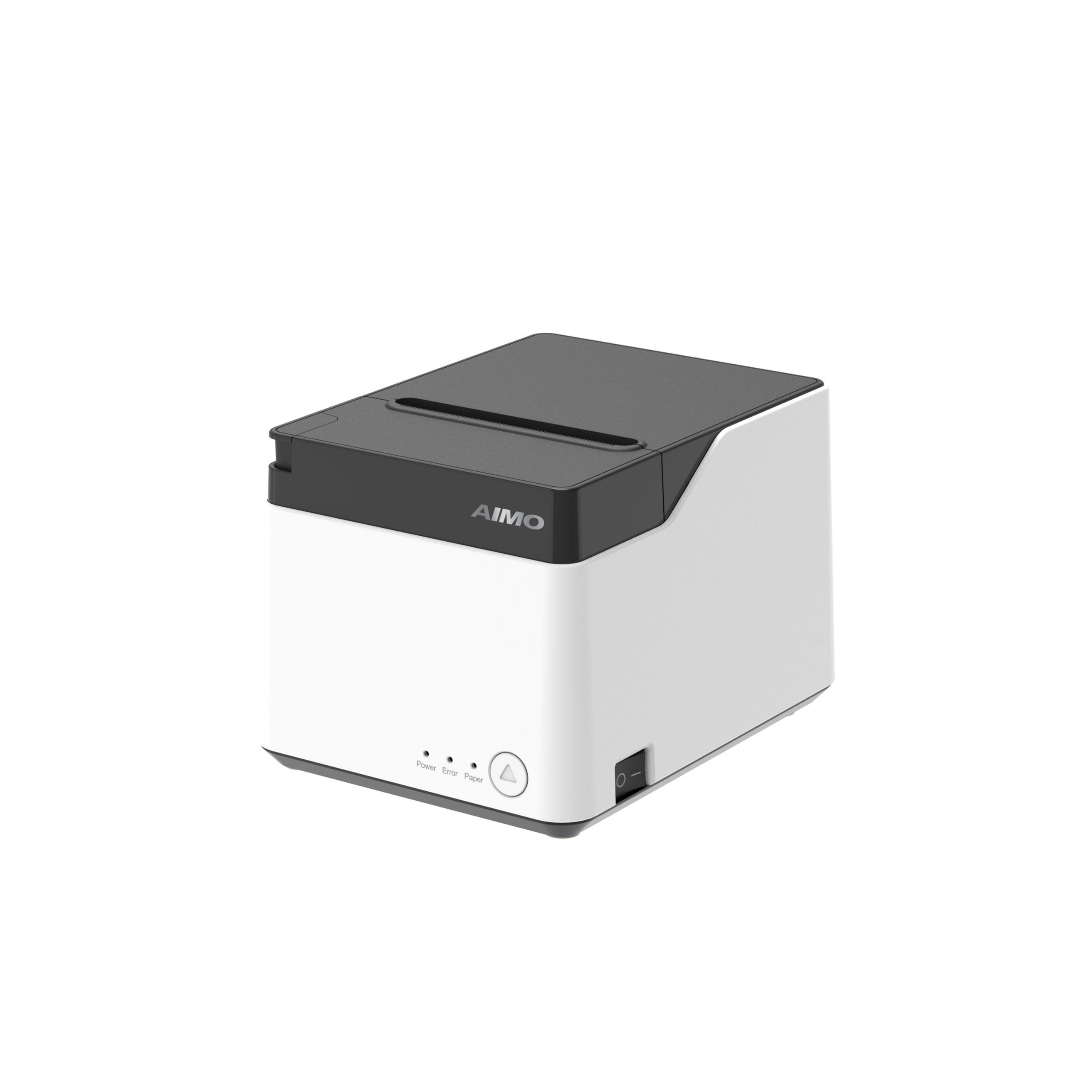


Quick Hardware Setup & Keypad Hotkey Breakdown
ToggleAIMO M550 Cable Tube Printer: The Master Step-by-Step Guide
Efficient and precise wire marking is the backbone of modern control panel building, switchgear manufacturing, and industrial automation. Clear cable identification speeds up assembly, simplifies circuit troubleshooting, and ensures long-term compliance with engineering standards.
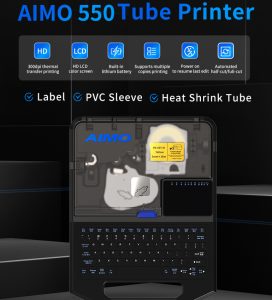
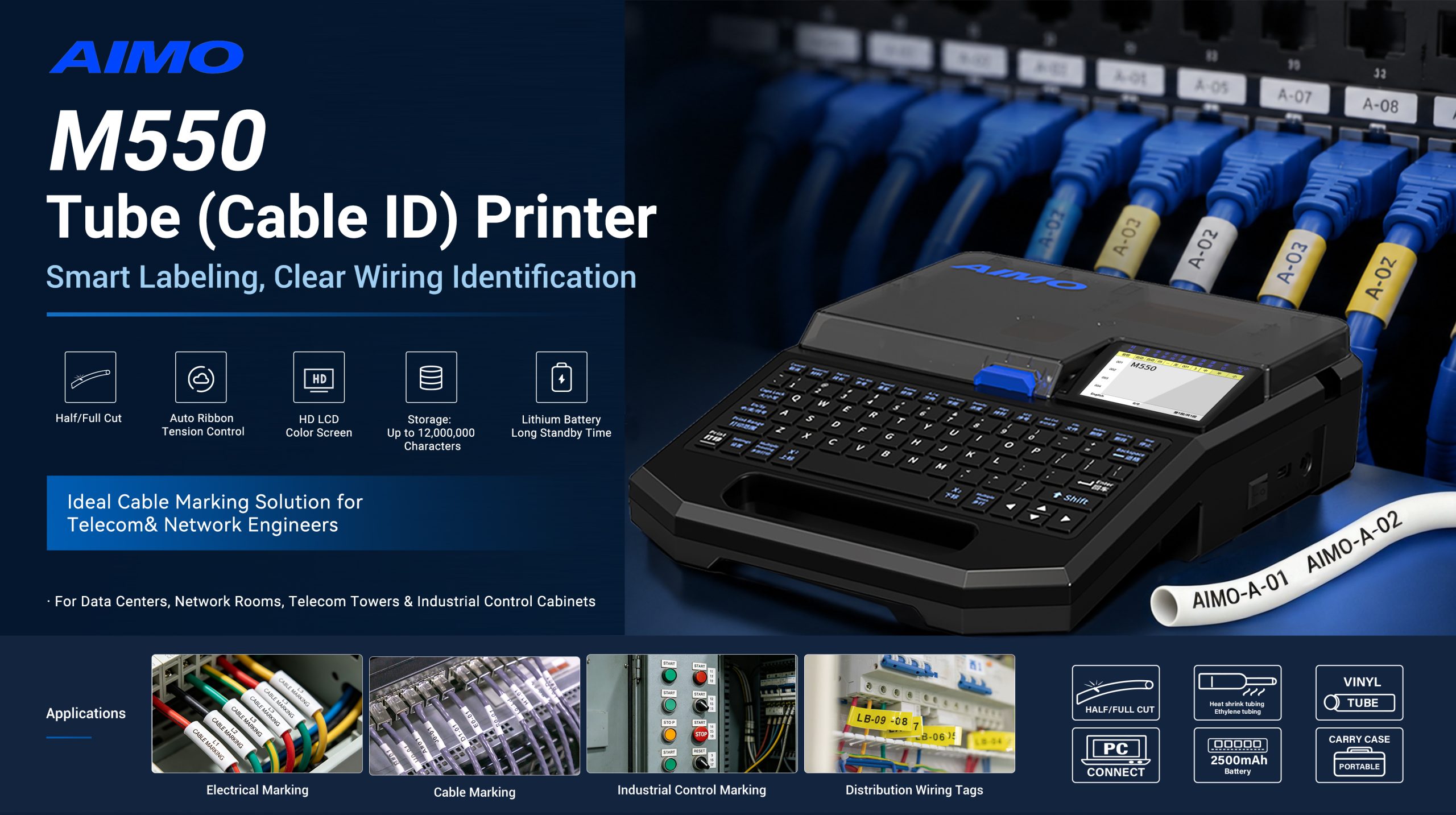
The AIMO M550 is a heavy-duty industrial tube and label printer designed to streamline labeling in the field and workshop. Featuring an open-chip ribbon system, onboard hotkeys, and versatile material compatibility (PVC sleeves, heat-shrinkable tubes, and label tapes), this high-efficiency cable ID printer helps electrical engineers and panel builders print complex wire tags with zero hassle.
This comprehensive master guide walks you step-by-step through every feature of this wire label number tube printer—from basic hardware setup to advanced sequence printing, multi-line formatting, and superscript/subscript engineering symbols.
1. Quick Hardware Setup & Keypad Hotkey Breakdown
Before starting your labeling jobs, getting familiar with the hardware interface and physical keyboard shortcuts will significantly boost your field efficiency.
Hardware Setup & Ribbon Loading
Open the Hatch: Unlatch the top transparent cover to access the ribbon and material bays.
Install Chip-Free Ribbon: Insert the AIMO high-density thermal transfer ribbon cassette. Unlike traditional locked printers, the M550 features an unlocked design, allowing you to use cost-effective ribbons without proprietary chip restrictions.
Load Consumables: Slide your PVC tube, heat-shrink sleeve, or label tape into the dedicated guide track and close the cover.
Keyboard Shortcuts (Hotkey Overview)
The M550 eliminates navigating through deep digital menus by offering direct, dedicated physical keys:
Material: Instantly toggle between PVC Sleeve, Heat Shrink Tube, and Adhesive Tape.
Break Length: Toggle between Auto Length and Fixed Segment Lengths.
Font Size: Select font sizes (1–7) or enable Adaptive Auto-Sizing.
Repeat: Set batch print repetitions (up to 200 copies per segment).
Decoration: Add underlines, rectangular border frames, or
0/6/9identification marks.Direction: Switch between Horizontal, Vertical, and Mirror Printing modes.
Modify & Concentration: Fine-tune character spacing and print thermal density.
Arrangement: Adjust text alignment and offsets for multi-line layouts.
Half-Cut: Configure full cut, half-cut depth, or dotted-line cutting.
File & PC Link: Store up to 200 custom templates or connect via USB for PC-based batch printing.
2. Printing Clear & Large Line Numbers on Tubes and Sleeves
Producing crisp, high-contrast cable tags is straightforward on the M550 cable tube printer.
Step-by-Step Printing Workflow
Material & Font Configuration: Press Material and select your loaded media (e.g., Heat Shrink Tube). Press Font Size to pick an easily readable text size.
Enter Wire Identifiers: Use the full QWERTY keyboard to type your circuit ID (e.g.,
12K2.6).Set Segment Parameters: Adjust the segment length to fit your terminal block or cable sleeve specifications.
Execute Printing: Press Print. The internal thermal engine generates high-legibility, scratch-resistant text and cleanly half-cuts the sleeve for easy tear-off and installation.
3. Setting Up Automated Serial & Sequence Numbering
Manually typing sequential numbers during cabinet assembly wastes time and introduces human error. This wire label number tube printer includes built-in auto-incrementing algorithms.
5 Available Sequence Modes
The M550 supports five distinct incrementing modes:
0 - 999(Standard numeric increment)000 - 999(Padded 3-digit serials)A - Z(Uppercase alphabetical sequence)a - z(Lowercase alphabetical sequence)00 - FF(Hexadecimal numbering for industrial PLC data lines)
How to Program a Serial Sequence
Enter Prefix Text: Type your fixed identifier (e.g.,
ON-orKW-).Activate Sequence: Press the Seq hotkey.
Select Mode & Range: Choose your numbering mode (e.g.,
000-999) and input your starting and ending parameters (e.g., Start:001, End:020).Confirm & Print: A sequence symbol ($\text{Seq}$) appears on the LCD screen. Press Print to output the full series (
KW-001,KW-002,KW-003…KW-020) automatically.
4. Batch Repeat Printing for High-Volume Harnessing
When assembling standardized control panels, you often need multiple identical wire markers for terminal blocks, relays, and contactors. As a high-performance cable ID printer, the M550 handles continuous batching seamlessly.
Configuring Batch Repeat Parameters
Input Circuit Text: Enter your required wire identifiers on the home screen. You can edit up to 200 distinct text segments in a single job file.
Press Repeat: The screen prompts you for the Repeat Value (Range: 1–200).
Select Paragraph Scope:
Current Paragraph: Applies repetition strictly to the selected wire tag.
All Following Paragraphs: Synchronizes the repeat count across all subsequent segments in your batch list.
Execute Print: Print huge uniform, identical sleeve batches without re-typing data.
5. Multi-Line & Stacked Text Printing on Compact Tubes
When schematic diagrams require both line numbers and terminal destination codes on a single sleeve, using a multi-line cable tube printer keeps tags concise and readable.
How to Print 2 or 3 Lines on a Single Sleeve
Reduce Font Size: Press Font Size and select a smaller character size (Sizes 1 to 3 allow multi-line stacking).
Type Line 1: Enter your primary text (e.g.,
YU-KK).Insert Line Break: Press the Multiple Rows hotkey. A vertical dividing bar appears on the LCD screen.
Type Line 2: Input your secondary information (e.g.,
899-00).Print & Verify: Press Print. The M550 centers and aligns the lines on your selected sleeve diameter.
6. Printing Complex Engineering Symbols (Superscripts & Subscripts)
In control schematic designs, wire identifiers often contain technical formulas or multi-level symbols (such as $\text{PL}_2^1$). Standard labelers lack dedicated formatting keys for these symbols, but this wire label number tube printer handles them natively.
Formatting Technical Symbols (PL₂¹)
Enter Base Character: Type your main circuit letter (e.g.,
PL).Locate Dedicated Hotkeys: Find the Superscript (X¹) and Subscript (X¹) keys positioned directly next to the spacebar.
On-Screen Input:
Press Superscript (X¹) and enter the top value in the upper highlighted screen box.
Press Subscript (X¹) and enter the bottom value in the lower highlighted screen box.
Print Output: Press Print to produce standardized, perfectly formatted engineering tags (PL₂¹).
7. Why Electrical Engineers Switch to AIMO M550: Key ROI Advantages
Replacing outdated, chip-locked labelers with the AIMO M550 industrial tube and label printer delivers immediate cost savings and field benefits:
| Feature Category | AIMO M550 Advantage | Operational Benefit |
| Consumables Architecture | Unlocked Chip-Free Design | Saves 50% on Ribbon Costs by eliminating mandatory proprietary cartridge lock-ins. |
| Screen Display | 10-Line High-Res LCD | Full text preview prevents editing typos and eliminates wasted media. |
| Portability | Rechargeable Lithium Battery | Allows all-day printing on remote job sites without hunting for AC power outlets. |
| Cutting Mechanism | Heavy-Duty Auto/Half Cutter | Prevents tubing jams and provides clean, easy-peel continuous sleeves. |
| Storage & Connectivity | 200-Template Memory & USB PC Link | Save frequent panel templates locally or upload large CSV databases directly from a PC. |
Master Your Industrial Marking Workflow
The AIMO M550 Industrial Tube and Label Printer provides an intuitive, heavy-duty solution for all wire identification needs. Whether you need a standalone cable ID printer, an automated wire label number tube printer, or a high-speed cable tube printer for workshop batching, the M550 delivers professional results at a fraction of traditional operational costs.
Ready to Upgrade Your Panel Building Operations?
Request a B2B Quote: Interested in factory-direct purchasing, OEM customization, or becoming an authorized regional distributor? Contact our sales team today or leave an inquiry on our site to receive exclusive wholesale pricing!